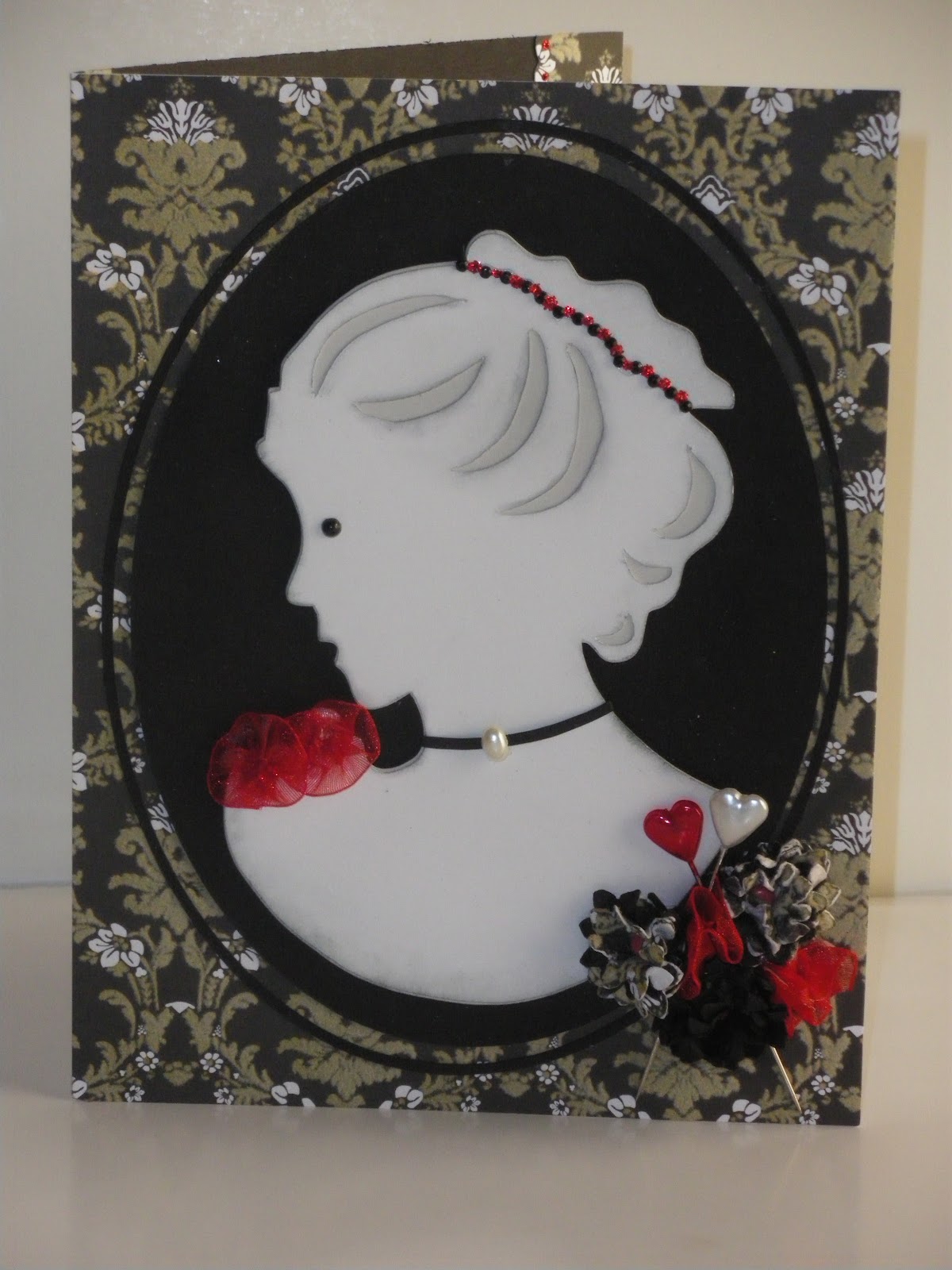
Hello there, my fellow crafters. By special request today I am presenting a tutorial on using your Cameo, Chomas Adjustable Pen Holder and Lettering Delights Thin Line Fonts to create custom sentiments to go inside your handmade greeting cards. This is a picture heavy tutorial, meant to instruct the newbie. If you are more experienced, you may want to skip through and find the parts that interest you.
Here we go:
First, replace your Cameo blade with your Chomas Adjust pen holder (for Cameo) following the directions enclosed with your pen holder.
Add your pen, also following directions that came with your pen holder. I'm using a Gelly Roll gel pen.
Now, we are going to create our sentiment to go inside our card. First, we are going to create a rectangular box to place our words in. In your Silhouette Studio software, click on the Create A Rectangle icon located on the left of your screen.
Create your box on the mat by moving your cursor to a spot on the mat and left click and hold the button down as you drag your mouse down and to the right. Release left mouse button, when you have a rectangle about the size you like. Now you should size your rectangle to fit comfortably inside your card. I do this by dragging the lower right corner of my rectangle until it's the size I want. Remember to create your box to fit the orientation of your card. In this example, my card is an A2 size (4.25" X 5.5 ") and it the width is larger than the height. I decided on a 3.75" X 5 " block (approximately) for this card which leaves a half inch border when adhered to the inside of the card.

Now, the next few steps do not need to be in this exact order, but this is the order in which I created this particular block. Go to your Fonts by clicking on the Text Styles icon (see arrow in picture) in the upper right hand side of your top tool bar. A listing of all the fonts installed on your computer will appear in your Text Style menu. Choose a font by clicking on it in your menu. If you want your results to turn out the way mine did in this tutorial, you need to use a Thin Line Font, like the ones I purchased from Lettering Delights. I will add a link to their site at the end of this tutorial. These fonts will be listed as "LDT.........." with the name of the font after the LDT. This prefix makes it super easy to find them in your font list. I am using LDT Hearth in this example.
Next, go the Text Icon on the left side tool bar and click on it. See picture below:
Now, bring your cursor inside the rectangle, where you want your letters to start, and click. A blinking cursor should now sit inside your rectangle.
Before you start typing, you might want to change your text size. It defaults to 72pt which is rather large. I like to use 24 pt as a general rule, but it really depends on how much text you are entering. In this example I had 4 lines of text for a small card, so I used 18 pt. You can always adjust your sizing later, but 24pt is typically a good starting point.
There are lots of sites with card phrases, verses, quotes, etc to use. All I do is Google what I'm looking for. In this example I Googled "Get Well Soon quotes" and a nice selection of sites came up.
Once I found one I liked, I went back to my Silhouette mat and typed it in. I pressed enter when I wanted to move to the next line. The words will not wrap. The important thing is to get your words into the text box . The text box is the box you see with the dark black line on the right of the box. When that black line is showing, you are in "creating the text box" phase. I refer to this as having your text box "active". Another way to activate your text box is to double click on it. It will highlight the text. When you do this, you are able to modify the text size, font type, make it bold, etc.

Now that I have my text, I realize it is not exactly placed here I want it. Once you click away from the text box, adding or editing text is no longer available, (sort of). It is now considered an image, and you can manipulate it as a whole, as you would any other image. If you click on it, the modify box we are familiar with appears. See the box below. You can now move your image, elongate it, make it taller, whatever your heart desires.
I decided this needed to be centered inside my card sentiment box (the larger rectangle) so I moved it using my mouse, as you would any other image, until I liked it's placement.
Once I moved my text to the center of my sentiment box, I realized it looked rather puny. So, I decided to add some spacing between the lines. In order to do this, I needed to activate my font box again. To do this double click on the text box and the black solid line should appear. Place your cursor at the end of each line of text and hit your enter key to add a line space.
I like that spacing so much better. However, it's sitting a little low in the sentiment box. I have two choices. I can either activate the text image and move it, or activate the rectangle image and move it until the text is centered inside. The choice is yours.
Once you are happy with your text placement, activate your rectangle outside your text box. I made my line easier to see by choosing the line style box (I don't have a picture but it's the icon on the upper right tool bar and it has one solid and several dotted line styles) and clicking on the thick black line. You do not need to do this. I did it so you could see it easier for this tutorial.
Move the rectangle off your mat.
You will be left with just the text on your mat.
Load your mat with cardstock into your Cameo.
Click "Send to Silhouette" icon.
This will open up your Silhouette Cut settings. Choose Silhouette Sketch Pen.
When using a gel pen I always click the double cut box. It will trace the letters/image twice and it's just extra insurance in case the pen skips or the ink flow lightens a bit during the process. It insures a nice vivid image.
Now click on the cut button....
and the magic begins........!!!
Oooh....Aaaah.....pretty.....awesome! DO NOT UNLOAD YOUR MAT!!!!!
Now, go grab that rectangle sitting over on the side, off your mat. Drag it over the wording on your screen and move it to where you like it.
Highlight your text box and move it off your mat. We are preparing to cut out our sentiment box.
Replace your Chomas pen holder with your blade/housing and tighten. Be sure to move your blade to the proper depth before you load it.
Click on Change Settings
Change your settings from Silhouette Sketch pen to the proper cardstock setting for the cardstock you are using. Once you have adjusted your settings, press Cut.
Here is your sentiment box.....
Oh, I love this technique! How much money I will save on word stamps. I also like the way it looks better than using my printer.
I decided this empty card I had would be good to use as a Get Well card.
There you have it!
This method can also be used for journaling blocks on scrapbook pages.
I mentioned earlier that I use Thin Fonts from Lettering Delights to achieve these results. The Hearth font is from the Thin Font Script Set 1. Most other fonts are not thin enough to give you what appears to be a single line, instead they show up as an open silhouette style lettering. Here is the link to the
Lettering Delights Thin Fonts. You will also need an adjustable pen holder. I love my Chomas Adjustable Pen holder, especially with good old gel pens. The results are fabulous. Here is the link to
Chomas Creations where you can order not only adjustable pen holders, but some other neat tools for your die cutting machines. Amy is awesome and I love sending new customers her way!
Because I love my pen holder so much, I am giving one away to one lucky follower. If you would like a chance to win a pen holder please become a follower and leave me a message on this blogpost. You also need to leave me a way to contact you in case you are the lucky winner! I will choose the winner via random drawing on Sunday, July 22nd. Good luck!